


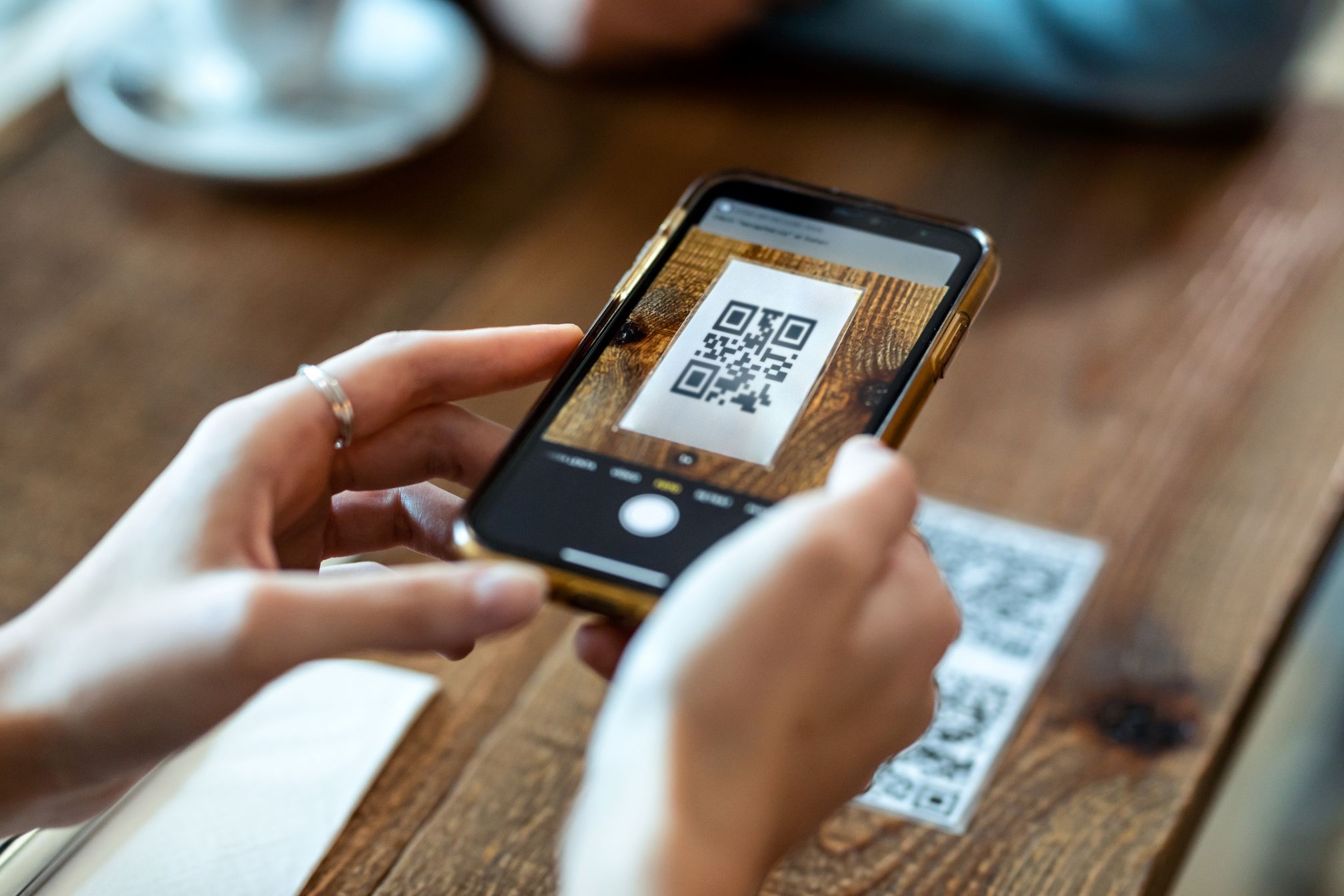
You already have a menu. Maybe it is a Word document, a Canva design or a PDF your designer sent you. The question is simple: how do you get that menu onto your customers’ phones with a QR code on the table?
This guide shows you how to do it yourself, for free. It starts very easy — no website needed — and gets more advanced step by step. Stop at whichever level suits you. Every route ends the same way: a link to your menu, turned into a good-looking QR code with our free QR code generator.
Pick your level
| Level | Method | Time |
|---|---|---|
| 1 · Easiest | Google Drive or Dropbox — no website needed | 5 min |
| 2 · Easy | WordPress, Wix or Squarespace | 10 min |
| 3 · Medium | Your own hosting (cPanel or FTP) | 15 min |
| 4 · Advanced | A permanent menu link with a redirect | 20 min |
| 5 · Expert | A mobile menu page with scan tracking | 45 min |
Before you start: make a menu PDF that works on a phone
Most people will read your menu on a small screen, standing at a bar or sitting at a table. A beautiful A3 print menu can be painful to read on a phone. A few minutes here makes a big difference:
- Use portrait pages. A4 or A5 portrait fits a phone screen far better than landscape or folded layouts.
- Use big text. Dish names around 14–16 pt and prices that are easy to spot. Nobody likes pinching and zooming.
- Keep the file small. Aim for under 2 MB so it opens quickly on mobile data. In Word, choose File → Save as → PDF → Minimum size. In Canva, choose Download → PDF Standard. You can also use a free online PDF compressor.
- Use a simple file name.
menu.pdforfood-menu.pdf— lowercase, no spaces, no special characters. This keeps your link clean. - Put allergens and prices on the same page as the dish, so guests don’t have to jump around the file.
Level 1 · Easiest: Google Drive or Dropbox (no website needed)
If you don’t have a website, or don’t want to touch it, this is for you. It takes about five minutes.
Google Drive
- Go to drive.google.com and sign in.
- Click New → File upload and choose your menu PDF.
- Right-click the file and choose Share.
- Under General access, change “Restricted” to Anyone with the link (role: Viewer).
- Click Copy link. That is your menu link.
Dropbox
- Upload the PDF to your Dropbox.
- Hover over the file and click Share, then Copy link.
- To update it later, upload a new file with exactly the same name into the same folder and choose to replace it. The shared link keeps working.
Good: free, fast, no technical skills. Not so good: guests see a Google or Dropbox page instead of your brand, and the link is long and messy (which makes a denser QR code).
Level 2 · Easy: upload it to your website builder
If you already have a website on WordPress, Wix or Squarespace, put the menu there. Guests stay on your own domain, and it looks more professional.
WordPress
- In your dashboard go to Media → Add New Media File and upload your PDF.
- Click the uploaded file and press Copy URL to clipboard. It will look like
https://yourrestaurant.com/wp-content/uploads/2026/11/menu.pdf. - That is your menu link.
Watch out: if you upload a new menu next season, WordPress gives it a new address and your QR code would still point to the old one. Either use a media-replace plugin (for example “Enable Media Replace”) to swap the file while keeping the URL, or jump to Level 4 for a permanent link.
Wix and Squarespace
- Wix: add a button or text link, choose Link → Document, upload your PDF, then publish and copy the file link from your live site.
- Squarespace: create a link, choose File, upload the PDF, then publish and copy the link from your live site.
Even better: create a page called Menu (for example yourrestaurant.com/menu) with a big “Open our menu” button that links to the PDF. Point your QR code at that page instead of the file. When the menu changes, you just change the button — the QR code never changes.
Level 3 · Medium: upload the PDF to your own hosting
If your website is on normal web hosting (most hosting companies give you cPanel or FTP access), you can put the file right on your domain with a short, clean address.
Using cPanel File Manager
- Log in to cPanel and open File Manager.
- Open the
public_htmlfolder (this is the root of your website). - Click + Folder and create a folder called
files. - Open it, click Upload and upload
menu.pdf. - Your menu link is now
https://yourrestaurant.com/files/menu.pdf. Open it on your phone to check it works.
Using FTP (FileZilla)
- Install the free FileZilla client.
- Connect with the FTP host, username and password from your hosting company.
- On the right side, open
public_html, create thefilesfolder and drag your PDF into it.
To update the menu: upload the new PDF with exactly the same name and overwrite the old one. The link and the QR code keep working.
Getting a bit technical?
You don’t have to do any of this. QR Dining gives you a ready-made digital menu with your own QR code: update dishes and prices in seconds from your phone, add photos and multiple languages, and never touch a PDF again.
See how QR Dining worksLevel 4 · Advanced: a permanent menu link you can redirect anytime
This is the trick professionals use. Instead of putting the PDF address in your QR code, you put a short, permanent address like https://yourrestaurant.com/menu in the QR code. That address simply redirects to whichever PDF is current.
Why it’s great:
- You can name your files by season —
menu-autumn-2026.pdf,menu-winter-2026.pdf— and keep the old ones. - Switching menus is a one-line change. The printed QR codes never change.
- The link in the QR code is short, so the QR code is simpler and scans faster.
This works on most hosting that runs the Apache web server (which includes most cPanel hosting).
Step 1: upload your PDF
Upload it to the files folder as in Level 3, for example files/menu-autumn-2026.pdf.
Step 2: add the redirect
In File Manager, open public_html and find the file called .htaccess. (If you can’t see it, turn on Settings → Show Hidden Files. If it doesn’t exist, create it.) Download a backup copy first, then add these lines at the top:
# Permanent menu link for the QR code
RedirectMatch 302 ^/menu/?$ /files/menu-autumn-2026.pdf
Save it and open https://yourrestaurant.com/menu on your phone. Your PDF should open.
Next season, upload menu-winter-2026.pdf and change only the file name in that line. Done.
Why
^/menu/?$? It matches exactly /menu or /menu/ and nothing else, so it can’t clash with other pages on your site. Make sure you don’t already have a page called “menu” on your website.
Step 3 (optional): always show the newest PDF
To stop phones from showing an old, saved copy of your menu, add this to the same .htaccess file:
# Make sure guests always get the latest menu PDF
<IfModule mod_headers.c>
  <FilesMatch "\.pdf$">
    Header set Cache-Control "no-cache, must-revalidate"
  </FilesMatch>
</IfModule>
If anything goes wrong after editing .htaccess (for example a “500 Internal Server Error”), simply upload your backup copy again and everything is back to normal.
Level 5 · Expert: a mobile menu page with tracking
A PDF is quick, but it has limits. On many Android phones a PDF downloads first and opens in a separate viewer, and you can’t see how many people scanned your code. The expert solution is a small, fast menu page on your own website. It loads instantly, shows your brand, links to each menu, and lets you measure scans.
Step 1: create the page
In public_html, create a folder called menu and inside it a file called index.html. Paste this in and change the name, colours and file names to yours:
<!DOCTYPE html>
<html lang="en">
<head>
<meta charset="utf-8">
<meta name="viewport" content="width=device-width, initial-scale=1">
<title>Menu | Trattoria Bella</title>
<style>
body { margin:0; font-family:Arial, sans-serif; background:#faf7f2; color:#222; text-align:center; }
header { background:#1a1a1a; color:#fff; padding:28px 16px; }
h1 { margin:0; font-size:26px; }
main { max-width:420px; margin:0 auto; padding:24px 16px 40px; }
a.btn { display:block; margin:0 0 14px; padding:18px; border-radius:14px;
background:#fff; color:#222; text-decoration:none; font-size:19px;
font-weight:bold; box-shadow:0 2px 10px rgba(0,0,0,.08); }
p.small { color:#777; font-size:14px; }
</style>
</head>
<body>
<header><h1>Trattoria Bella</h1></header>
<main>
<a class="btn" href="/files/food-menu-autumn-2026.pdf">Food menu</a>
<a class="btn" href="/files/drinks-menu.pdf">Drinks & wine</a>
<a class="btn" href="/files/desserts.pdf">Desserts</a>
<a class="btn" href="/files/allergens.pdf">Allergen information</a>
<p class="small">Wi-Fi: TrattoriaGuest · Ask our staff about today's specials</p>
</main>
</body>
</html>Your QR code now points to https://yourrestaurant.com/menu/. To change a menu, upload the new PDF and edit one link on this page. (If you set up the Level 4 redirect, remove that line first — this page replaces it.)
Step 2: more languages
Tourists love a menu in their language. Make one PDF per language and add a row of buttons at the top of the page, for example English · Español · Deutsch, each linking to its own PDF.
Step 3: count your scans
If your website uses Google Analytics, add tracking tags to the link inside your QR code:
https://yourrestaurant.com/menu/?utm_source=qr&utm_medium=table&utm_campaign=menuAdd your Analytics tag to index.html as well. In Analytics you will then see exactly how many guests opened the menu from a table QR code. Use a different utm_medium for each place — table, window, flyer — to compare which works best. Note: this only works with a web page like the one above; a PDF on its own can’t be tracked.
Now make your QR code
Whichever level you chose, you now have one link. Time to turn it into a QR code that looks like it belongs in your restaurant.
- Open our free QR code generator. It’s free, with no sign-up, and the codes never expire.
- Paste your menu link into the Website box.
- Under Style, tap the Menu quick style for an instant “Scan for menu” look, or choose your own dot and corner shapes.
- Under Colours, pick your brand colour. Keep the code dark on a light background so every phone can read it.
- Under Logo, upload your restaurant logo and choose a square, rounded or circle shape. Error correction goes up automatically, so the code still scans.
- Under Frame & text, add a call to action such as SCAN FOR MENU or VIEW OUR MENU.
- Check that the preview says Scan test passed.
- Download: choose SVG for your printer or designer (it stays sharp at any size), or PNG at 2048 px for printing at home.
Printing tips
- Size: at least 3 × 3 cm on table cards. A good rule: the code should be about one tenth of the distance people scan it from. For a window poster read from 2 metres away, that is around 20 cm.
- Test before you print 50 copies. Print one, put it on a table, and scan it with an iPhone and an Android phone, in your restaurant’s real lighting.
- Use a matte finish. Glossy lamination reflects ceiling lights and can make the code hard to scan.
- Leave white space around the code. Don’t let your design crowd right up to its edges.
- Tell people what it does: “Scan for our menu” works much better than a QR code on its own.
Common mistakes to avoid
- Putting a link in the QR code that will change next season — then reprinting everything.
- A 20 MB PDF that takes ages to open on mobile data.
- A Google Drive file still set to “Restricted”, so guests see “You need access”.
- Light grey or yellow codes on white that cameras struggle to read.
- Never testing the printed code with a real phone.
Frequently asked questions
Is all of this really free?
Yes. Google Drive and Dropbox have free plans, most hosting already includes cPanel, and our QR code generator is free with no account.
Will my QR code ever stop working?
The QR code itself never expires — it simply contains your link. It only stops working if the link stops working, for example if you delete the file or your website goes offline. Use the update tips in each level and it will keep working for years.
Can I change the menu without reprinting the QR code?
Yes, as long as the link stays the same. Replace the file in place (Levels 1–3), change the redirect (Level 4) or edit your menu page (Level 5).
PDF or online menu — which is better?
A PDF is the quickest way to start. An online menu is easier to read on a phone, updates instantly, and can show photos, allergens and several languages. That is exactly what QR Dining does for you.
Rather not deal with PDFs, hosting and .htaccess?
Let us handle it. QR Dining sets up a beautiful mobile menu for your restaurant, café or bar, with your own QR codes. Change prices and dishes in seconds, add photos and languages — no reprinting, no technical work.
Get your QR Dining menu